LAYERS
Create a Layer in Illustrator
In the first section, we will discuss how to create a Layer.
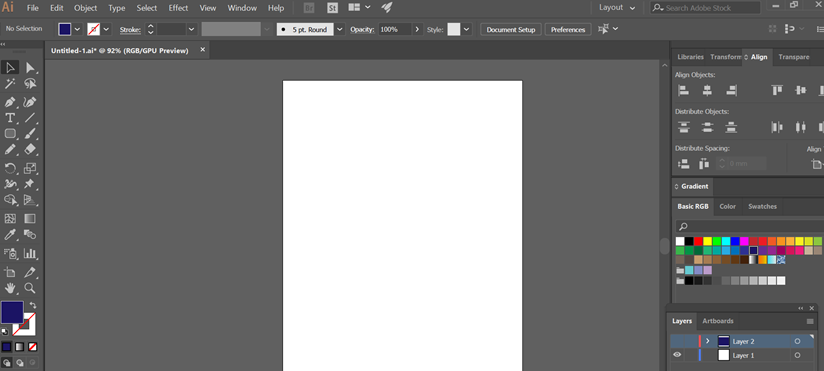
Step 1: To start using the Layers, open it from the Windows and select the Layers option.
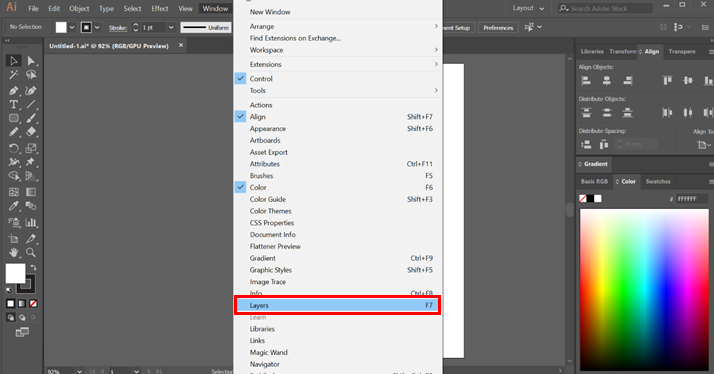
Now you will see a layers panel in the bottom right part. You can begin using the layers options to list, manage, and control items in your work. It is recommended to always keep the layers panel activated in your document for easy access.
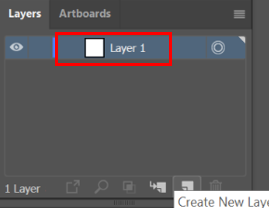
Step 2: Now, go to the Layers panel and press the icon below as shown in the image. This will create a new layer. By default, the layer is named Layer 1. You can rename it by double-clicking on the layer you want to rename.
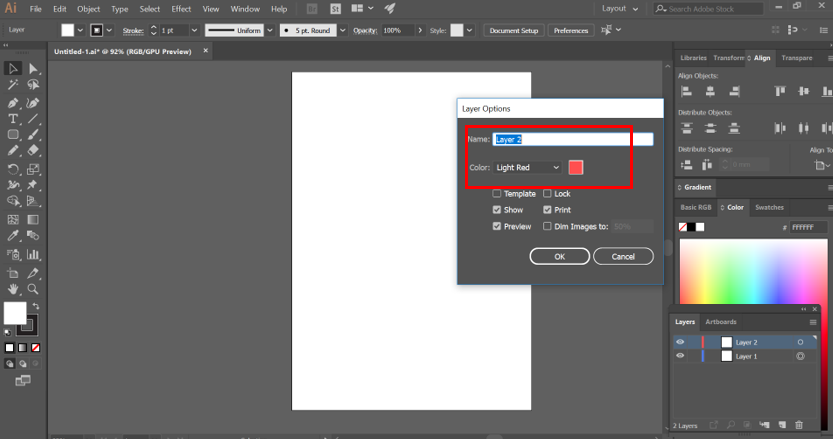
Step 3: Also, the new layer will have the default color. You can change its color by double-clicking the layer and using the layer options. See the below image.
Step 4: You will find adobe illustrator layers adjacent to the created Layer. It is used to hide or show the content in the Layer.
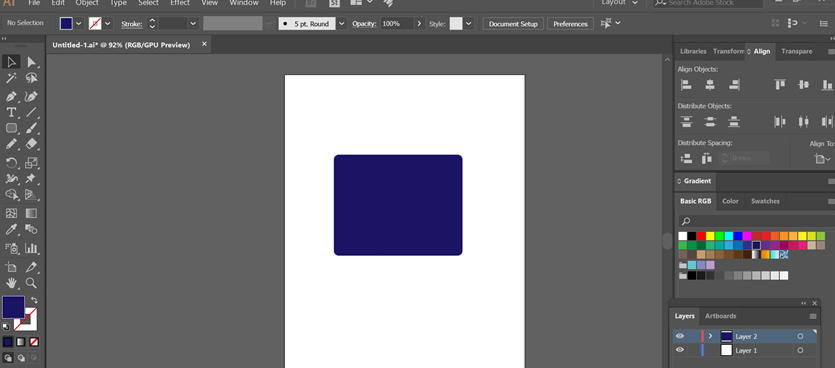
Step 5: Press it, and the Eye icon disappears, making all the items in it out of sight. If you need to see the Layer again, all you have to do is press the eye icon area again.
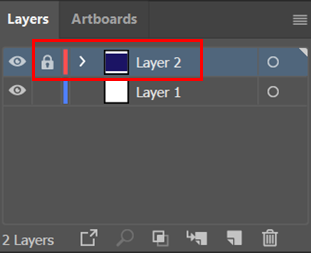
Step 6: Next to the eye icon is the area to lock your Layer. On clicking there, a padlock icon appears. This means that your layer is locked, and you cannot move or select anything from the items inside the layer. Again, if you need the items, click on the lock icon, and now you can work on the Layer again.
Set Layer and Sublayer options
Illustrator allows the users to further create objects and link them with the parent layers. It is called sub-layers, where the items will be branching from the original layer. Follow the below instructions.
- Double click the object from the layers panel.
- From the layers panel, select options after selecting the item.
- Finally, select New Layer or New Sublayer from the layers panel menu
Move an Object to a Different Layer
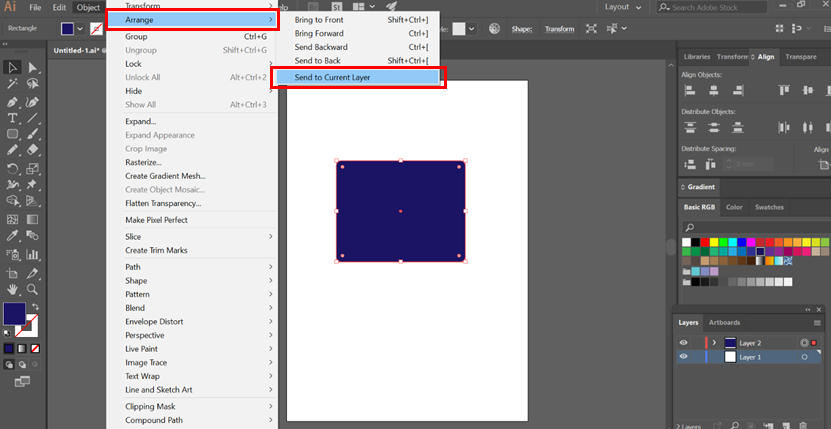
Often in Illustrator, once you have created an object, you might have to move it to a different Layer. After creating objects in a layer, you could still move them to a different Layer by following the below instructions:
- Choose the items you need to move.
- Select the Layer you want the item to be moved to.
- Now go to Object> Arrange> Send to Current Layer.
- A more simple option is to drag the object directly to the desired layer. Just be careful that you are moving the object to the correct layer.


Comments
Post a Comment